
Framer tutorial · 5 steps · no code
How to add a Gantt chart to a Framer site (no code)
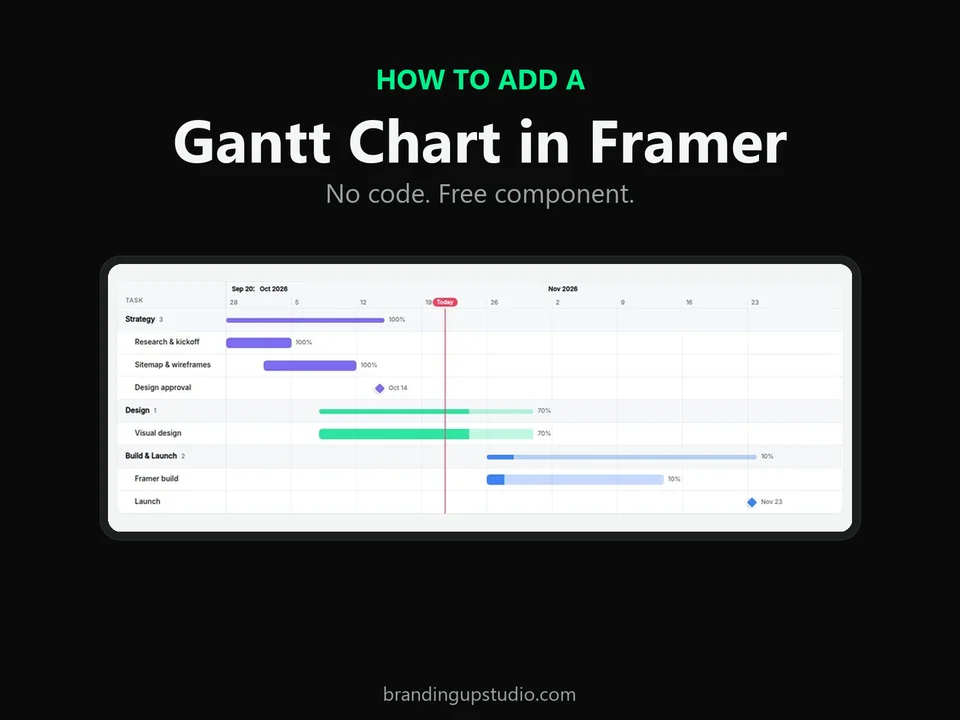
Framer has no built-in Gantt chart, and screenshots go stale the moment a date changes. Here is how to put a real, editable one on your page in a few minutes, using a free component you paste onto the canvas.
01Install the free component
Open Gantt Chart Lite on the Framer Marketplace and copy its Component URL. Then paste it onto your Framer canvas with Cmd/Ctrl + V. Clicking the link in a browser only shows version info, so it has to be pasted into Framer.
https://framer.com/m/GanttChartLite-mhxyrN.js@QxtPPn5GLN3RFW6XVtTE
The chart appears with sample data, so you can see how it works before you change anything.
No Framer account yet? Create one for free.
02Add tasks, dates, progress and milestones
Select the chart and open the property panel on the right. Everything lives under Tasks. Each task has:
- Name and an optional Group. Tasks that share a group name sit under one group header.
- Start and End dates, typed as YYYY-MM-DD (for example 2026-11-02).
- Progress from 0 to 100%, which fills the bar.
- Milestone, a toggle that turns the task into a diamond marker.
- Color for that task.
You never position anything by hand. The time scale, bars and a “today” line are calculated from your dates, and the scale adjusts to the length of your schedule. Hover a bar to see a tooltip. You can switch Today Line, Progress % and Tooltip on or off. Lite shows up to 6 tasks.
03Style it
Match the chart to your site from the same panel:
- Colors: background, header, text, sub text, grid, today line and border.
- Fonts: one for names, one for the time scale.
- Size: name column width (120–420 px), row height (28–90 px), bar height (6–48 px), bar radius and corner radius.
- Column Title: rename the “Task” header to anything you like.
Tip: for a dark site, change Background, Header, Text, Sub Text and Grid together. The default look is a light card.
04Check it on small screens
The name column stays pinned on the left while the chart area scrolls sideways, so visitors on phones can still tell which bar belongs to which task. If your schedule feels cramped, raise Min Chart Width (default 640 px) to give the timeline more room, or narrow the name column. Preview your page at phone width in Framer before you publish.
05Publish
Hit Publish as usual. Because the chart is driven by dates, updating the schedule later is just a matter of editing a date in the property panel and publishing again. When we release an update to the component, Framer shows an Update button on it.
When you need more: Lite vs the full Gantt Chart
Lite is a complete chart on its own. The paid Gantt Chart Timeline ($14) adds the controls long plans need:
| Feature | Lite (free) | Full |
|---|---|---|
| Tasks | Up to 6 | Unlimited |
| Groups | Always shown | Collapsible, with a Start Folded option |
| Time scale | Automatic | Auto, Day, Week or Month |
| Today line | Always the real date | On/off, or pin any date |
FAQ
How do I enter dates?
Type them as YYYY-MM-DD in each task. The time scale, bars and today line update on their own.
Can visitors drag the bars?
No. It is a display chart that you edit in Framer’s property panel, so there is no code to touch.
Does it link tasks with arrows or read from the Framer CMS?
Not yet. The full version’s listing says dependencies and CMS input are not supported; groups and milestones are. Lite is built from the same component.
Does it work on phones?
Yes. Task names stay pinned and the chart scrolls sideways.
Need help? Email hello@brandingupstudio.com — custom edits from $75/hr.