
Framer tutorial · 5 steps · no code
How to add a pricing calculator to a Framer site (no code)
Usage-based pricing is hard to explain with a static table. A slider that updates the price as visitors drag does it in one glance. Here is how to put one on your Framer page in a few minutes, using a free component you paste onto the canvas.
In this guide
01Install the free component
Open Price Calc Lite on the Framer Marketplace and copy its Component URL. Then paste it onto your Framer canvas with Cmd/Ctrl + V. Clicking the link in a browser only shows version info, so it has to be pasted into Framer.
https://framer.com/m/PriceCalculatorLite-MdlZIa.js@ePVB9HPqoYFcyQIi8P0x
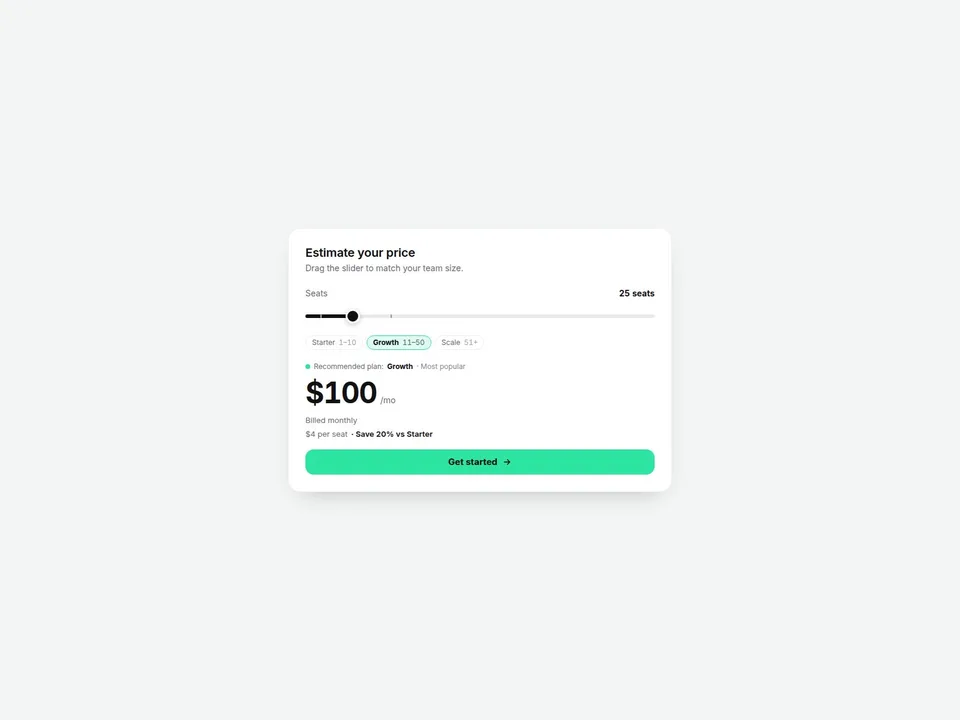
The calculator arrives as a 480 px wide card with sample data (seats, three plans, $100 a month at 25 seats), so you can see how it works before you change anything.
No Framer account yet? Create one for free.
02Set the slider: unit, min, max, step and default
Select the card and open the property panel on the right. The top of the panel is the slider itself:
- Title and Subtitle: the two lines above the slider (“Estimate your price” by default).
- Unit Label and Unit Singular: what you are counting, for example seats / seat, users / user, credits / credit.
- Min, Max and Step: the range the slider covers and how far it jumps per move. The sample runs from 1 to 200 in steps of 1.
- Default: where the thumb sits when the page loads (25 in the sample).
The slider is a native control, so visitors can also move it with the keyboard, and screen readers announce the value as “25 seats, $100 per month”.
03Add tier plans and prices
Under Tiers you describe your plans. Lite holds up to 3 tiers, and each one has:
- Plan: the name shown in the tier ladder (Starter, Growth, Scale in the sample).
- Up To: the highest usage this tier covers. The next tier starts right after it, so the ladder reads 1–10, 11–50, 51+.
- Pricing: Per unit (price × usage) or Flat (one price for the whole tier).
- Price: the per-unit rate or the flat amount.
- Note: a short label such as “Most popular”, shown next to the recommended plan.
You do not pick the plan yourself. As the visitor drags, the component works out which tier the value falls in, highlights it in the ladder, updates the Recommended plan line and rolls the big price to the new amount. A Base Price is added to every total if you need a platform fee.
Four toggles control what else is shown: Tier Ladder (the plan pills), Tier Marks (tick marks on the track), Per-Unit Price and Savings. The savings line compares the current per-unit total with what the same usage would cost at the first tier’s rate, so it reads “Save 20% vs Starter” in the sample. Set the Currency symbol, switch Rolling Numbers on or off and pick a Roll Duration between 100 and 2000 ms. Finally give the button a CTA Text, a CTA Link and choose whether it opens in a new tab.
04Style it
Everything visual lives under Style and the three font controls:
- Colors: card, text, sub text, track, fill, thumb, accent (the recommended pill and button) and border.
- Radius (0–48 px) and Shadow on or off.
- Fonts: one for the title, one for the price, one for body text.
Tip: for a dark site, change Card, Text, Sub Text, Track and Fill together. The default look is a white card with a dark slider and a mint accent.
05Publish
Hit Publish as usual. One thing to know: on the Framer canvas the price shows its final value without the rolling animation, because the canvas is a static render. Open the Preview or the published page to see the digits roll. Visitors who have “reduce motion” turned on also get the final number immediately. When we release an update to the component, Framer shows an Update button on it.
When you need more: Lite vs the full Price Calculator
Lite is a complete calculator on its own. The paid 18 Price Calculator ($12) adds the controls bigger pricing pages need:
| Feature | Lite (free) | Full |
|---|---|---|
| Tiers | Up to 3 | Unlimited |
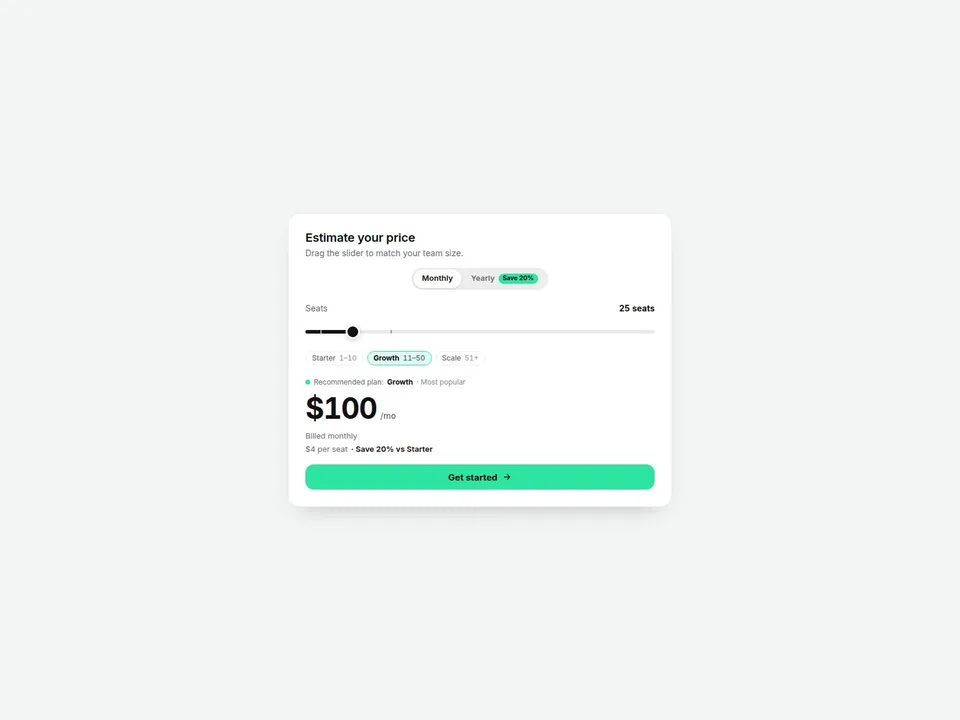
| Billing | Monthly only | Monthly / yearly toggle with a yearly discount and a default period |
| Top of the slider | Shows the last tier | Optional “Custom / Contact sales” switch at the maximum |
| Layout | Card | Card or Compact (inline, slider left / price right) |
| Currency | Symbol only | Symbol position, space, decimals, thousands and decimal separators |
| Labels | Fixed English text | Every text string editable |
Swipe sideways to see all three columns.
FAQ
Can a tier be a flat price instead of per unit?
Yes. Each tier has its own Pricing switch, Per unit or Flat, so you can mix both in one calculator.
Does the price animate on the Framer canvas?
No. The canvas is a static render, so it shows the final value. The rolling digits appear in Preview and on the published site, and are skipped for visitors who prefer reduced motion.
Can I change the “Billed monthly” or “Recommended plan” text?
Not in Lite, where those labels are fixed English text. The full version lets you edit every string, including the Save badge and the per-unit and savings lines.
Does it need any code or external libraries?
No. You edit everything in Framer’s property panel. The component is a single file with no external libraries and no looping animations.
Need help? Email us — custom edits from $75/hr.
hello@brandingupstudio.com