
Framer tutorial · 5 steps · no code
How to add a peelable sticker board to a Framer site (no code)
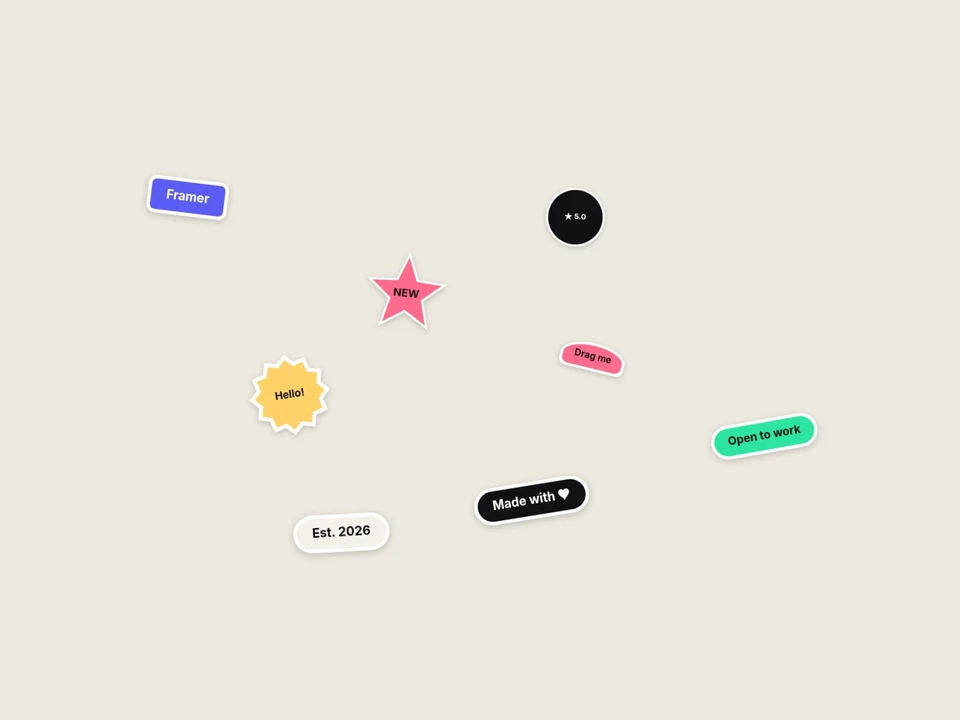
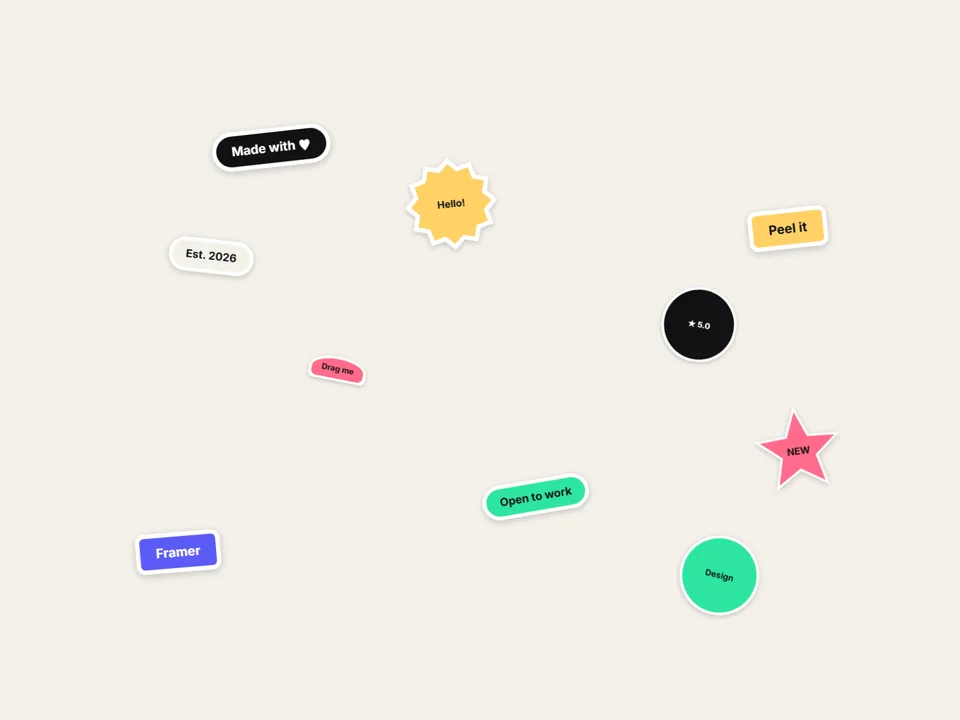
A board of die-cut stickers that visitors can grab, peel up, drag around and slap back down is a quick way to make a hero or About page feel hand-made. Here is how to put one on your Framer page in a few minutes, without a single image, using a free component you paste onto the canvas.
In this guide
01Install the free component
Open Sticker Board Lite on the Framer Marketplace and copy its Component URL. Then paste it onto your Framer canvas with Cmd/Ctrl + V. Clicking the link in a browser only shows version info, so it has to be pasted into Framer.
https://framer.com/m/StickerBoardLite-9OLTx0.js@susK5O9dDIBJKnZIKwHV
The board arrives at 800 × 520 px with eight sample stickers already on it, so you can see how it works before you change anything. It has no background of its own by default, so it sits on whatever color your section has. A good setup is Width set to Fill and a fixed height.
No Framer account yet? Create one for free.
02Add your stickers: label, shape, color, size
Select the board and open the property panel on the right. Your stickers live under Stickers. Lite holds up to 8, and each one has:
- Label: the text on the sticker (“Open to work”, “Est. 2026”, “NEW”).
- Shape: Pill, Rect, Circle, Star, Burst or Arch.
- Color: the fill. The white die-cut edge is drawn around whatever shape you pick.
- Size: 20–300% of the board’s base sticker size, so a few stickers can be bigger or smaller than the rest.
Text color is handled for you: with Text set to Auto, the label turns dark on light fills and white on dark ones. Switch it to Custom to set one Text Color for every sticker. You do not need any images; text and shapes are enough for a finished board.
03Choose a layout
The board places the stickers for you. Under Layout pick:
- Scatter: stickers spread across the board at random spots and angles. Change the Shuffle number (1–99) to get a different arrangement until you like one.
- Grid: stickers in neat rows.
Three sliders control how “hand-placed” the board feels: Size (60–320 px, the base size every sticker is scaled from), Size Variety (0–60%, how much sizes differ from one another) and Max Tilt (0–45°, the most any sticker is rotated).
04Tune the feel and the look
With Drag on, visitors can grab any sticker. The next controls set what happens while they hold it:
- Peel (0–100%): how far the corner lifts off the board when grabbed.
- Lift (1–1.3×): how much the sticker grows while it is in the air.
- Lean (0–30°): how much it tilts into the direction it is dragged.
- Slap Tilt (0–30°): the little twist when it lands.
- Grab: To Front brings the held sticker above the others; Keep leaves the stacking order alone.
- Bounds: Inside keeps stickers on the board; Free lets them be dragged past its edge.
- Dbl-click: Reset puts every sticker back where it started when the board is double-clicked.
Keyboard users can focus a sticker and move it with the arrow keys; holding Shift moves it five steps at a time.
Then the look: Die-cut width (0–14 px) and Die-cut Color, Radius (0–60 px) for the corners of Rect and Arch stickers, Shadow (0–100%), Padding X and Padding Y inside each sticker, a Background color for the board and one Font for all labels.
05Publish
Hit Publish as usual. On the Framer canvas the board only shows the arrangement; dragging works in Preview and on the published site, so test the feel there. Visitors who have “reduce motion” turned on can still drag, without the peel and lift effects. On the phone breakpoint, lower Size and the font size so the board fits. When we release an update to the component, Framer shows an Update button on it.
When you need more: Lite vs the full Sticker Board
Lite is a complete board on its own. The paid 20 Sticker Board ($12) adds what a link-in-bio or a logo wall needs:
| Feature | Lite (free) | Full |
|---|---|---|
| Stickers | Up to 8 | Up to 30 |
| Sticker types | Text and shapes | Text, shapes and images (transparent PNG, WebP or SVG; the die-cut edge follows the artwork) |
| Links | None | A link on every sticker: tap opens, drag never does; same or new tab |
| Layouts | Scatter, Grid | Scatter, Grid, Arc and Manual with per-sticker position and tilt |
| Letting go | Drops where you leave it | Throw with momentum, on or off |
Swipe sideways to see all three columns.
FAQ
Do I need to prepare any images?
No. Lite stickers are text on a shape (Pill, Rect, Circle, Star, Burst or Arch) with a die-cut edge. Image stickers are a full-version feature.
Can a sticker open a link?
Not in Lite. In the full version every sticker can carry a link: a quick tap opens it and dragging never does, so the board can double as navigation or a link-in-bio.
Why can’t I drag stickers on the Framer canvas?
The canvas shows the arrangement only. Open Preview or the published page to drag, peel and slap them.
How do visitors put everything back?
Double-click the board. Set Dbl-click to Nothing if you would rather they did not.
Need help? Email us — custom edits from $75/hr.
hello@brandingupstudio.com