
Framer tutorial · 5 steps · no code
How to add a customer journey map to a Framer site (no code)
A customer journey map lays out what a person does, where they meet you, how they feel and what gets in their way, stage by stage. Here is how to put one on your Framer page in a few minutes, without drawing a single line, using a free component you paste onto the canvas. Type your stages, score how each one feels, and the emotion curve draws itself.
In this guide
01Install the free component
Open Journey Map Lite on the Framer Marketplace and copy its Component URL. Then paste it onto your Framer canvas with Cmd/Ctrl + V. Clicking the link in a browser only shows version info, so it has to be pasted into Framer.
https://framer.com/m/JourneyMapLite-l6bsKL.js@nc3nJ8AnjwtezbWySFPa
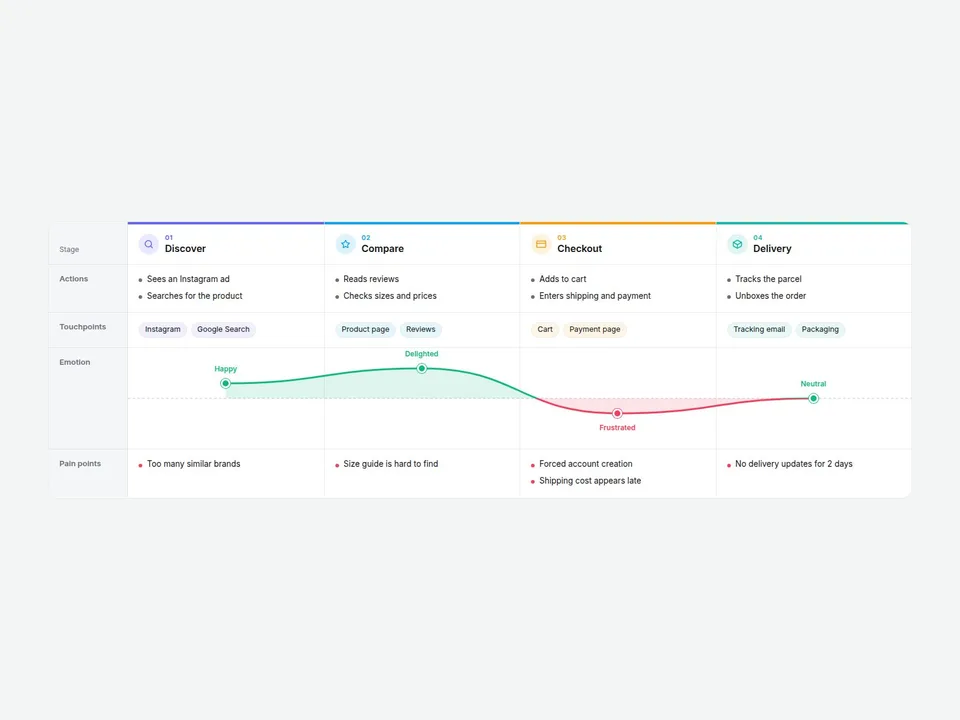
The map arrives at 1200 × 700 px with a finished sample already on it: an online store purchase journey in four stages (Discover, Compare, Checkout, Delivery). You can see how it works before you change anything. A good setup is Width set to Fill and a fixed height.
No Framer account yet? Create one for free.
02Add your stages: actions, touchpoints, emotion, pain points
Select the map and open the property panel on the right. Your columns live under Stages. Lite holds up to 4, and each stage has:
- Name: the column title (“Discover”, “Checkout”).
- Icon: None, Search, Cart, Card, Box, Heart, Chat, Star, User, Mail or Flag.
- Color: the stage color. Stages without a color get one from a built-in palette.
- Actions: what the customer does, one action per line.
- Touchpoints: where they meet you, separated by commas or new lines. They show as small chips.
- Emotion: a score from -2 (upset) to +2 (delighted) in steps of 0.5. This is what draws the curve.
- Pain points: what goes wrong, one per line.
The curve is smooth and changes color above and below the neutral line, so highs and lows read at a glance. Each dot also gets a mood word such as Delighted, Happy, Neutral, Frustrated or Upset. You do not draw anything; scores in, curve out.
03Choose the rows and the look
You do not have to show everything. Four switches turn rows on or off: Actions, Touchpoints, Emotion and Pain points, each set to Show or Hide. Hide rows for a clean summary in a pitch, show them all for a workshop or a case study.
Then the look:
- Stage Icons and Mood Labels: switch the stage icons and the mood words on or off.
- Curve Positive and Curve Negative: the two curve colors.
- Background, Label Column, Text, Sub Text and Border: the table colors.
- Radius (0–40 px): the corner roundness of the whole map.
- Body Font and Header Font: one for the text, one for titles and row labels.
04Scrolling, hover and accessibility
The map is built as a real table with a label column pinned on the left. When the page is narrow, the stage columns scroll sideways and snap into place while the row labels stay put, so it works on a phone breakpoint without extra work.
- Hover Column (On or Off): softly highlights the stage under the cursor. It shows in Preview and on the published site rather than on the canvas.
- The scrolling area can be focused with the keyboard and is labeled “Customer journey map, scroll horizontally” for screen readers.
- Screen readers also hear each stage’s score as text, for example “Checkout: -1 (Frustrated)”, since the curve itself is a drawing.
If you delete every stage, the map shows a hint reading “Add stages in the properties panel”.
05Publish
Hit Publish as usual. Check the hover highlight and the sideways scroll in Preview or on the published page. When we release an update to the component, Framer shows an Update button on it.
When you need more: Lite vs the full Customer Journey Map
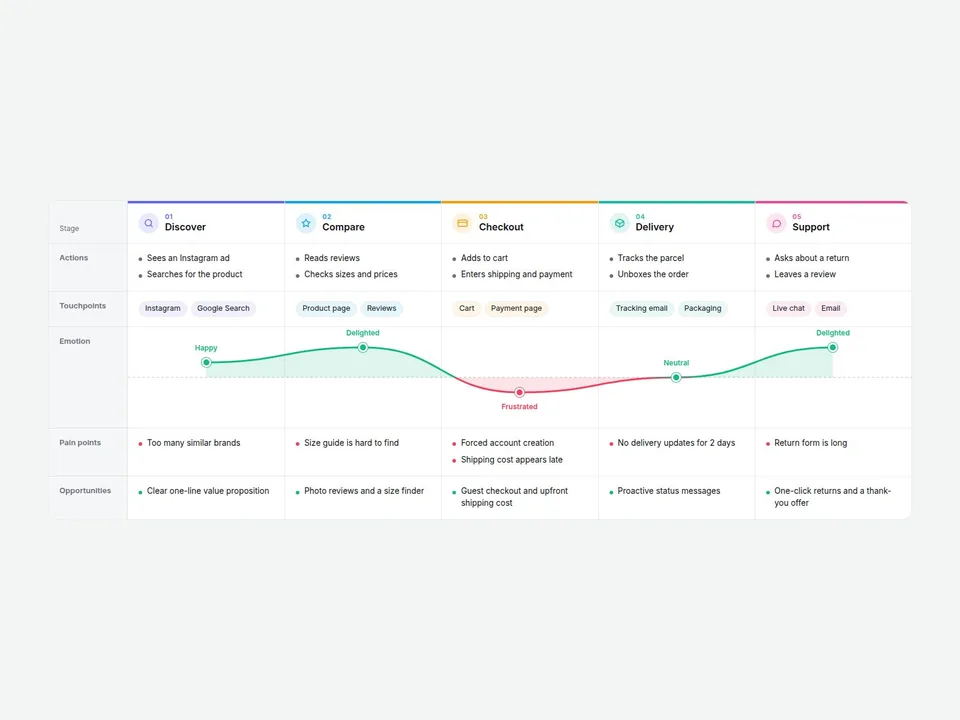
Lite is a complete journey map on its own. The full 10 Customer Journey Map adds what a longer or more detailed map needs:
| Feature | Lite (free) | Full |
|---|---|---|
| Stages | Up to 4 | Unlimited |
| Rows | Actions, Touchpoints, Emotion, Pain points | The same four plus an Opportunities row, with an Opportunities field on each stage |
| Density | Comfortable | Comfortable or Compact |
| Row names | Fixed English names | Editable with Row Labels |
| Sample | Four stages | Five stages |
Swipe sideways to see all three columns.
Where a journey map template helps
If you were searching for a customer journey map template, or a way to build a journey map in Framer without redrawing boxes in a design tool, this is a ready-made table you edit by typing. It suits UX and branding case studies (show the research behind a redesign), agency process pages (explain how a project moves from first contact to launch) and onboarding explainers (show where new users feel stuck and what you fixed). Because it is a live component on your page, it stays sharp at any width and updates when you edit the text.
FAQ
How many stages can I add?
Lite holds up to 4 stages. The full version has no cap.
How is the emotion curve drawn?
From the Emotion score of each stage, from -2 (upset) to +2 (delighted) in steps of 0.5. The line is smooth and changes color above and below the neutral line.
Can I add an Opportunities row or rename the rows?
Not in Lite, which has four fixed rows. The full version adds an Opportunities row, a Compact density and editable row names.
Does it work on phones?
Yes. The label column stays pinned and the stage columns scroll sideways and snap into place.
Need help? Email us — custom edits from $75/hr.
hello@brandingupstudio.com