
Framer tutorial · 5 steps · no code
How to add an iceberg diagram to a Framer site (no code)
An iceberg diagram shows the small part people see above the waterline and the much larger part underneath. It is a clear way to explain a brand, a team culture or a service on a pitch deck page or an About page. Here is how to put one on your Framer page in a few minutes, with no shapes to draw, using a free component you paste onto the canvas.
In this guide
01Install the free component
Open Iceberg Diagram Lite on the Framer Marketplace and copy its Component URL. Then paste it onto your Framer canvas with Cmd/Ctrl + V. Clicking the link in a browser only shows version info, so it has to be pasted into Framer.
https://framer.com/m/IcebergDiagramLite-FAL4WL.js@heQFj3VTmlhpyhS3VWfy
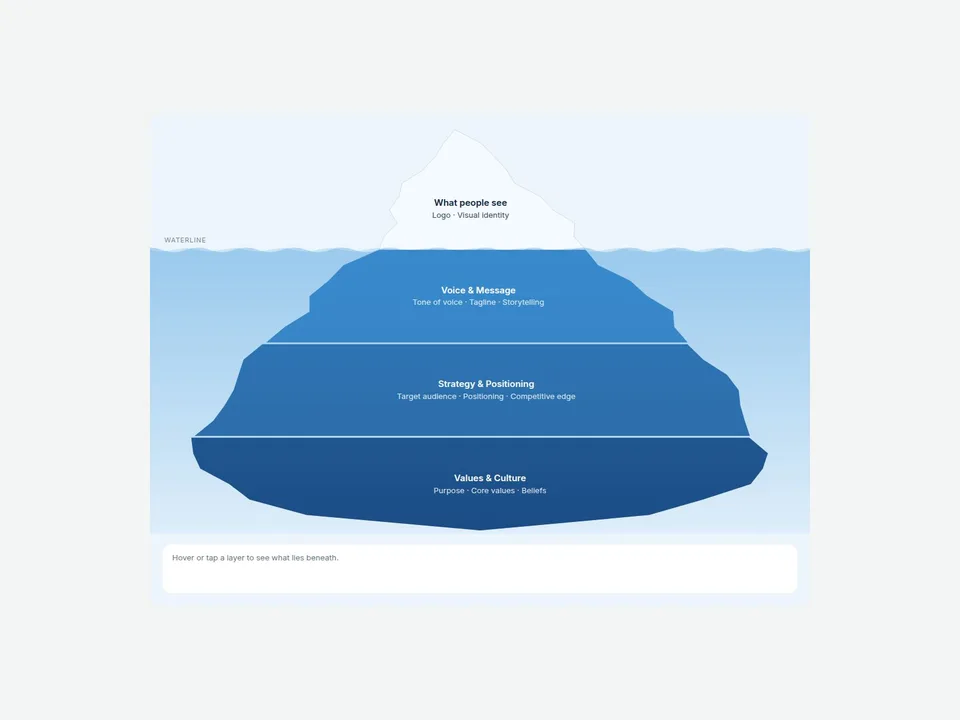
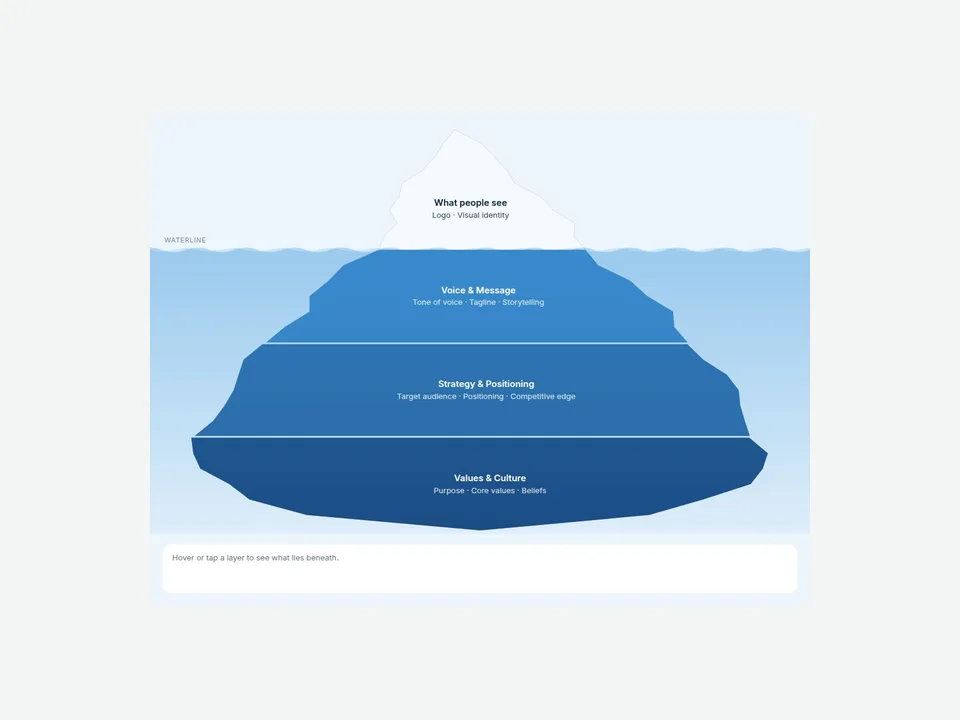
The diagram arrives at 820 × 620 px with a sample iceberg already on it (a brand example with a visible tip and three hidden layers), so you can see how it works before you change anything. A good setup is Width set to Fill and a height that gives the layers room to breathe.
No Framer account yet? Create one for free.
02Type your layers
Select the diagram and open the property panel on the right. The content has two parts.
- Above the waterline: Above Title, Above Items (what people can point at and remember) and Above Note, a short sentence for the detail panel.
- Levels: the hidden layers, listed top to bottom below the waterline. Lite holds up to 3. Each level has a Title, Items (one item per line) and a Note.
You never draw or resize anything. The iceberg splits itself to fit however many layers you type: a small tip above the water, wider layers below, a rounded bottom. Add or remove a level and it re-splits on its own. Deeper layers also get darker automatically.
03Shape the iceberg and the look
These controls change the iceberg itself:
- Above Water (10–60%): how much of the height sits above the waterline.
- Roughness (0–100%): smooth or jagged edges.
- Shape Seed (1–50): change the number to get a different edge until you like one.
- Gap (0–12 px): the space between layers.
- Wave Shape (0–14 px) and Waterline Text: the waterline stays still in Lite, with a soft water gradient and a label you can rename.
For color, set Base Color and Deep Color; Depth Shade (0–95%) controls how strongly deeper layers darken. You can also set Surface Ice, Water, Background, Panel, Highlight, Text and Text on Ice, plus Radius, Padding, Spacing and two fonts (Title Font and Body Font). To match your brand, start with Base Color and Background.
04Set up the detail panel and keyboard use
With Interactive on, visitors can hover or tap any layer to highlight it. With Detail Panel set to Show, the layer’s title, item chips and note appear in a panel underneath. Panel Hint is the line shown before anything is selected.
Keyboard users can move between layers with the arrow keys, open one with Enter or Space, and press Escape to close it. The component also tells them about this through a short note for screen readers.
On narrow screens the diagram switches to a stacked list of layer buttons. Stack Below (0–1200 px, default 560) sets the width where that switch happens, so check the phone breakpoint in your layout.
05Publish
Hit Publish as usual. On the Framer canvas the diagram shows the layout only; hover and tap highlights work in Preview and on the published site, so test them there. When we release an update to the component, Framer shows an Update button on it.
Where an iceberg diagram works well
If you were searching for an iceberg diagram template or an iceberg model for a website, the idea is always the same: what customers see versus what is underneath. On a pitch deck page, put the product on top and the process, team and data below it. On an About page, show the logo and visual identity above the line and the values, strategy and culture beneath. It also suits brand icebergs, “iceberg of success” stories, culture models and any “what people don’t see” explainer. Because the layers are plain text, you can reuse the same component for each of them.
When you need more: Lite vs the full Iceberg Diagram
Lite is a complete diagram on its own. The full 14 Iceberg Diagram (also free) adds more layers and labels:
| Feature | Lite (free) | Full |
|---|---|---|
| Hidden layers | Up to 3 | Up to 8 |
| Labels | Inside the iceberg | Inside, or on the left or right side with dotted leader lines |
| Waves | Still waterline | Optional wave animation |
| Starting state | No layer selected | Open Layer pre-selects a layer |
Swipe sideways to see all three columns.
FAQ
How many layers can I have?
Lite supports up to 3 hidden layers below the waterline, plus the visible tip. The full version supports up to 8.
Do I have to draw the iceberg shape?
No. Type the layers and the shape splits itself to fit. Use Roughness and Shape Seed if you want a different edge.
Does it work on mobile?
Yes. Below the Stack Below width (560 px by default), the labels move into a list of layer buttons under the iceberg.
Can I put the labels beside the iceberg?
Not in Lite, where labels sit inside the iceberg. The full version can place them on the left or right with dotted leader lines.
Need help? Email us — custom edits from $75/hr.
hello@brandingupstudio.com