
Framer tutorial · 5 steps · no code
How to add a Sankey diagram to a Framer site (no code)
A Sankey diagram shows where things come from and where they go, with band thickness proportional to the amount. It is a clear way to put a budget, a traffic funnel or a customer journey on a page. Here is how to add a Sankey chart to your Framer site in a few minutes, by typing a list of flows into a free component you paste onto the canvas.
In this guide
01Install the free component
Open Sankey Diagram Lite on the Framer Marketplace and copy its Component URL. Then paste it onto your Framer canvas with Cmd/Ctrl + V. Clicking the link in a browser only shows version info, so it has to be pasted into Framer.
https://framer.com/m/SankeyDiagramLite-GXDftE.js@uIKCgSOLMh4nNUi2jcdf
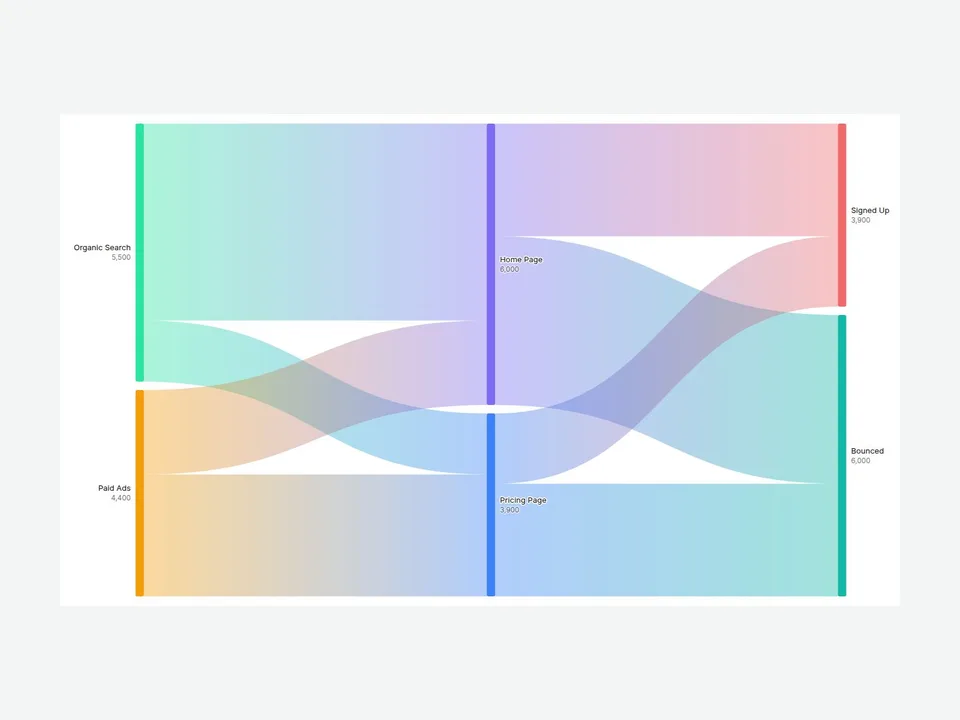
The diagram arrives at 720 × 420 px with eight sample flows already in it: two traffic sources, two landing pages and two outcomes. You can see how it works before you change anything. A good setup is Width set to Fill and a fixed height.
No Framer account yet? Create one for free.
02Enter your flows: From, To, Value
Select the component and open the property panel on the right. Your data lives under Links. Lite holds up to 8 links, and each one has three fields:
- From: where the flow starts (“Organic Search”).
- To: where it ends (“Home Page”).
- Value: the amount, a number from 0 up. The band thickness follows it.
You never draw or position anything. Nodes and columns are created automatically from the names, and the same name always means the same node. To chain flows, use the To of one link as the From of the next: “Home Page” as a To in one row and a From in another puts it in a middle column. The layout is also untangled so the bands cross as little as possible.
03Set labels, colors and layout
Under Labels choose what each node shows: Name, Name + Value, Name + %, Name + Value + % or None. Under Link Color choose how the bands are colored:
- Gradient: fades from the color of the From node to the color of the To node (the default).
- From Node or To Node: the band takes the color of that end.
- Neutral: one neutral color for every band.
Then fine-tune the shape. Align Ends (on by default) moves nodes with no outgoing flow, like “Signed Up”, into the last column. Prefix and Suffix add units to values, such as “$” or “ visits”. Node Width (2–60 px), Node Gap (0–80 px), Node Radius (0–30 px), Link Opacity (0.05–1) and Padding (0–80 px) set the proportions.
Node colors come from the Palette, picked in order of appearance, so reorder or replace the colors there. Label sets the text color, Background the chart background (white by default) and Font the typeface for all labels.
04Hover, tooltip and accessibility
Hover a node or a band and the flow connected to it lights up while everything else dims. In Lite this highlights the flows directly attached to what you point at. On touch screens, tap a node or band to pin the highlight and tap again to release it.
- Tooltip (Show or Hide): shows the value and share of what you point at.
- Dim Opacity (0–1): how faded the rest of the chart gets while something is highlighted.
- Alt Text: a description for screen readers. Leave it empty and a summary is generated from your links.
Keyboard users can press Tab to move between flows and nodes, Enter or Space to highlight one, and Escape to clear it.
05Publish
Hit Publish as usual. On the Framer canvas the chart shows the layout only; hover, tap and keyboard highlighting work in Preview and on the published site, so test them there. When we release an update to the component, Framer shows an Update button on it.
What a Sankey chart is good for on a website
If you searched for a Sankey diagram in Framer or a Sankey chart for a website, these are the jobs it does best: a budget flow from income to categories, traffic sources to conversions (search and ads, to landing pages, to sign-ups or bounces, like the sample data), and an energy or revenue breakdown that shows how a total splits and where each part ends up. It also suits user journeys and supply chains, on case-study pages, reports and investor decks.
When you need more: Lite vs the full Sankey Diagram
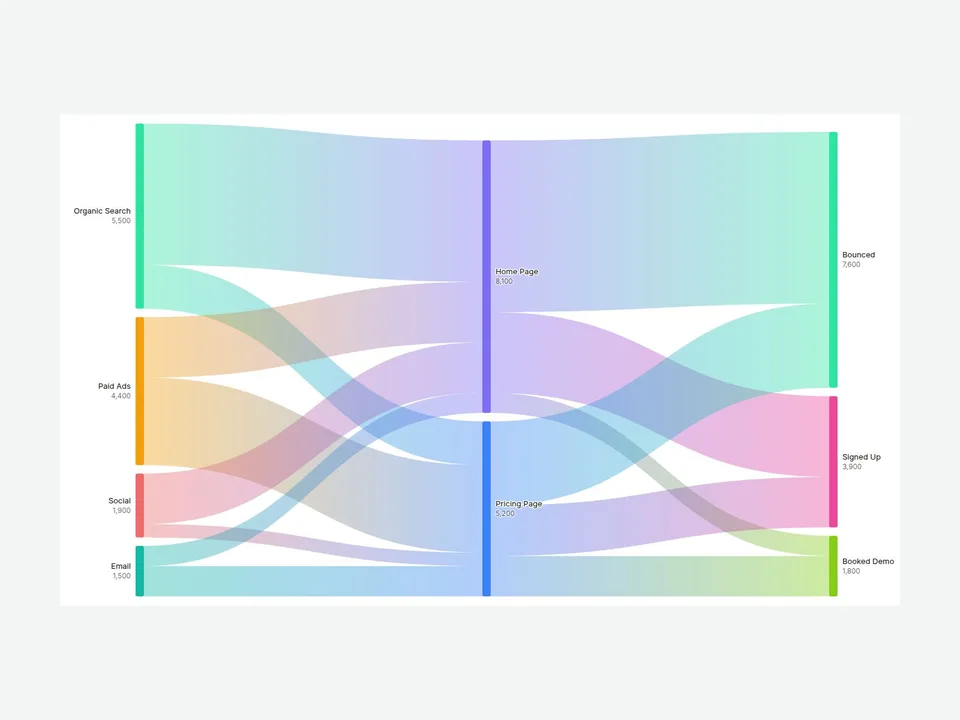
Lite is a complete diagram on its own. The full 07 Sankey Diagram (Sankey Flow Diagram, also free) adds what bigger data sets and mobile layouts need:
| Feature | Lite (free) | Full |
|---|---|---|
| Links | Up to 8 | Unlimited |
| Direction | Horizontal | Horizontal or Vertical, for mobile layouts |
| Hover highlight | Directly connected flow | Full Path (everything upstream and downstream), Direct Only or Off |
| Node colors | Palette, in order of appearance | Palette plus per-node color overrides |
| Labels, link colors, tooltip, prefix and suffix | Included | Included |
Swipe sideways to see all three columns.
FAQ
Do I need to position nodes or draw the bands?
No. You only list the flows as From, To and Value. Nodes, columns, band thickness and vertical order are calculated for you, and adding a link updates the layout.
How many flows can Lite show?
Up to 8 links. The full version has no limit.
Why does hover not work on the Framer canvas?
The canvas shows the layout only. Open Preview or the published page to hover, tap and use the keyboard.
Can I show the chart vertically on mobile?
Not in Lite, which is horizontal only. The full version adds a Vertical direction for mobile layouts.
Need help? Email us — custom edits from $75/hr.
hello@brandingupstudio.com